

Overview
UI Flow Sessions provides a comprehensive interface for monitoring and managing active user sessions with UI Flows. This feature enables you to track session activity, view audit logs, monitor associated processes, and debug UI Flow interactions in real-time.UI Flows
UI Flows are reusable, multi-platform user interfaces that work across web, iOS, and Android. They provide an alternative to BPMN processes when full process orchestration is not required.
Accessing UI flow sessions
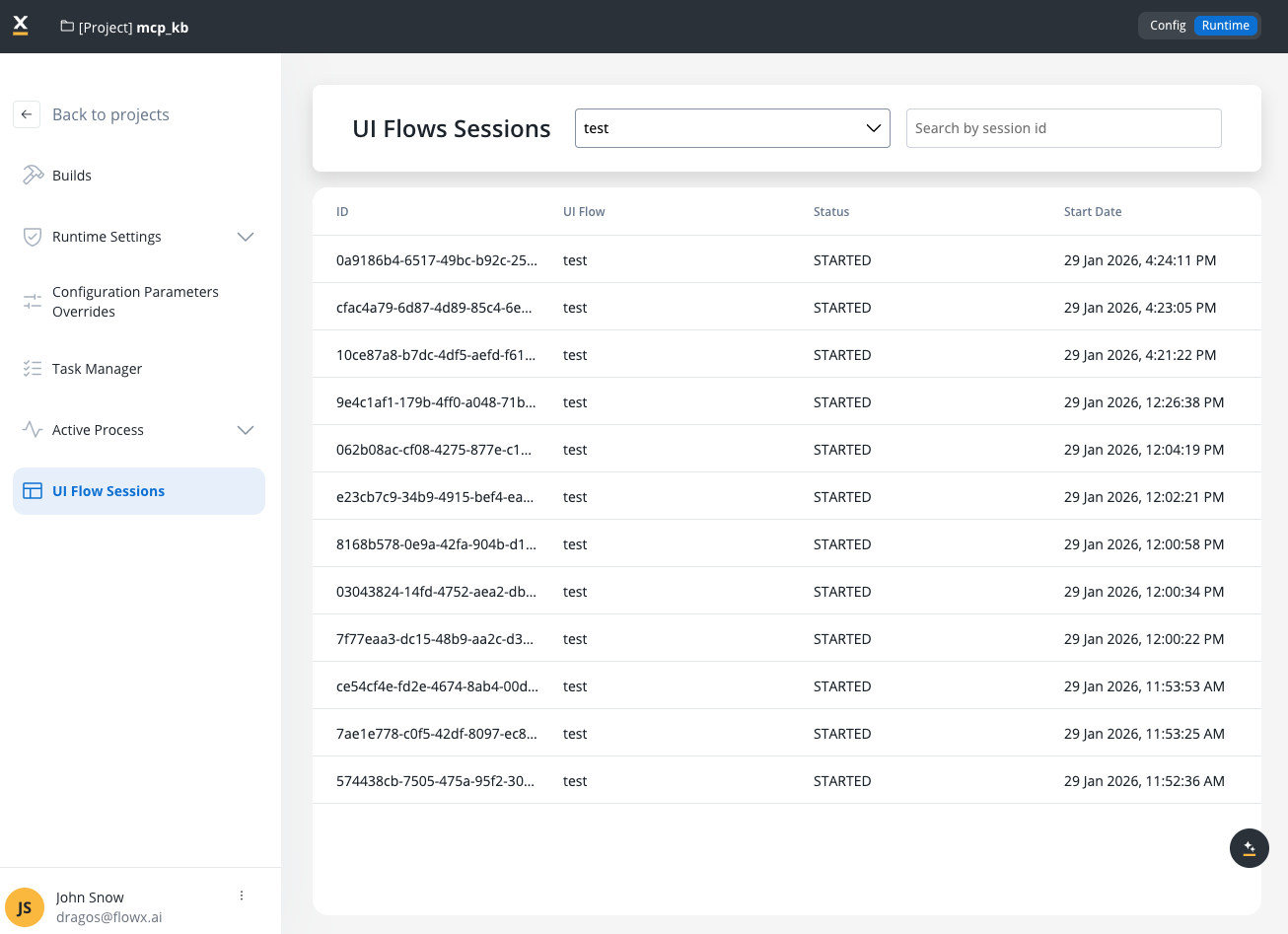
Navigate to Runtime Settings → UI Flow Sessions from your project’s Runtime view to access the sessions management interface.You must have appropriate runtime permissions to view UI Flow Sessions. See Access Management for details.
Sessions list
The UI Flow Sessions interface displays all active and historical sessions for UI Flows in your project. Each session appears as a row in the table with the following information:| Column | Description |
|---|---|
| ID | Unique session identifier (UUID format) |
| UI Flow | The name of the UI Flow definition associated with this session |
| Status | Current session status (for example, STARTED, FINISHED, ACTIVE) |
| Start Date | Date and time when the session was initiated (localized format) |
Filtering and searching
Use the filter and search controls preceding the sessions table to find specific sessions:- Filter by definition: Select a specific UI Flow definition from the dropdown to show only sessions for that UI Flow
- Search by session id: Enter a session ID (full or partial) to quickly locate a specific session
Session details
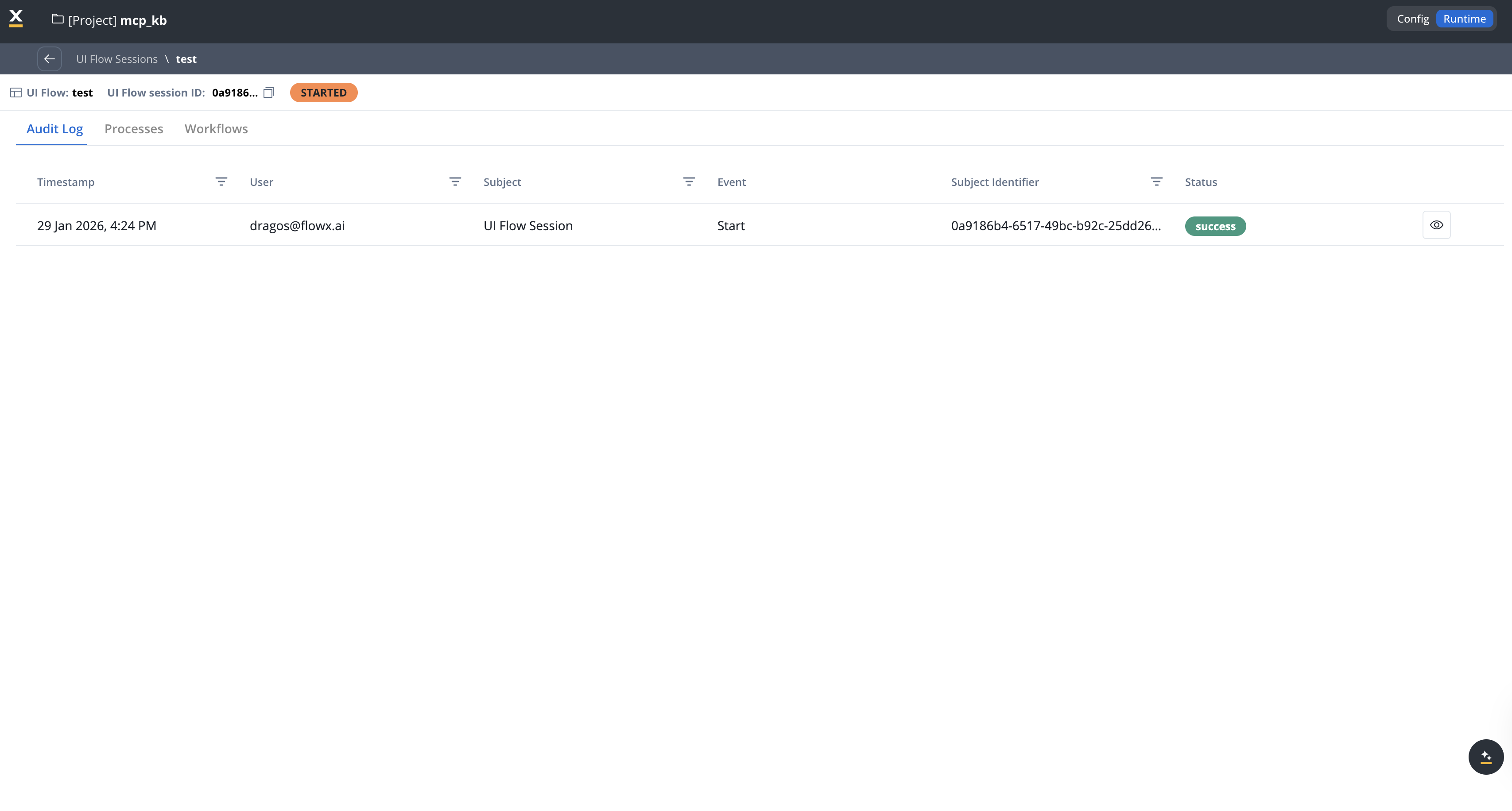
Click on any session in the list to view detailed information about that session. The session details view provides comprehensive insights into session activity.Session information header
The session details header displays:- UI Flow: The name of the UI Flow definition
- UI Flow session ID: The unique session identifier with a copy button for easy sharing
- Status badge: Visual indicator of the current session status (for example,
STARTED,FINISHED)
Detail tabs
The session details view includes three tabs for different aspects of the session:- Audit Log
- Processes
- Workflows
View a chronological log of all events and actions that occurred during the session.Audit Log columns:
 Common audit log events:
| Column | Description |
|---|---|
| Timestamp | Date and time when the event occurred (localized format) |
| User | User email or identifier who performed the action |
| Subject | Type of subject (e.g., “UI Flow Session”) |
| Event | Event type (e.g., “Start”, “Navigate”, “Action”) |
| Subject Identifier | Unique identifier for the subject (session ID, process instance ID, etc.) |
| Status | Event status (e.g., success, failed, pending) |
| View | Eye icon to view additional details about the event |
- Start: Session initialization
- Navigate: Navigation between Navigation Areas
- Action: UI Actions executed (e.g., Start Process, Navigate To)
- Process Start: Process instances launched from the UI Flow
- Process Complete: Process instances completed
Session statuses
UI Flow sessions can have different statuses indicating their current state:| Status | Description |
|---|---|
| STARTED | Session has been initiated and is active |
| ACTIVE | Session is currently active with ongoing user interactions |
| FINISHED | Session has been completed or closed |
| FAILED | Session encountered an error and was terminated |
Session statuses are updated in real-time as users interact with UI Flows. The status badge in the session details view reflects the current state.
Use cases
Session monitoring
Monitor active UI Flow sessions to understand user engagement and identify sessions that may need attention or support.
Audit and compliance
Track all user interactions and actions within UI Flow sessions for audit purposes and compliance requirements.
Debugging and troubleshooting
Investigate issues by reviewing audit logs, process instances, and workflow executions associated with a specific session.
Performance analysis
Analyze session duration, process start times, and workflow execution performance to identify optimization opportunities.
User support
Use session details to help users by understanding what actions they performed and identifying where they may have encountered issues.
Process tracking
Trace which business processes were triggered from UI Flow interactions and monitor their execution status.
Best practices
Regular monitoring
Regularly review active sessions to identify long-running sessions or sessions that may indicate user issues.
Use filters effectively
Use the filter by definition to focus on specific UI Flows when troubleshooting or analyzing usage patterns.
Review audit logs
Check audit logs for failed events or unexpected behavior patterns that may indicate configuration issues.
Track process launches
Monitor the Processes tab to understand which business processes are most commonly triggered from UI Flows.
Troubleshooting
Session not appearing in list
Session not appearing in list
Possible causes:
- Session hasn’t been started yet
- Filter is excluding the session
- User doesn’t have permission to view sessions
- Verify the UI Flow is being accessed by users
- Clear filters and search again
- Check user permissions for Runtime access
- Verify the build containing the UI Flow is active
Audit log shows failed events
Audit log shows failed events
Possible causes:
- UI Action configuration error
- Process start failure
- Workflow execution error
- Permission issues
- Review the event details using the view icon
- Check process definition is published and accessible
- Verify workflow configuration in Integration Designer
- Confirm user has necessary permissions
- Review browser console for client-side errors
Process instances not showing
Process instances not showing
Possible causes:
- Process wasn’t started from the UI Flow
- Process start action failed
- Process instance was deleted
- Verify Start Process UI Action is configured correctly
- Check audit log for process start events
- Confirm process definition is in the active build
- Review Failed Process Start section for errors
Related resources
UI Flows
Learn about UI Flows, their capabilities, and how to create and configure them.
Start Process UI Action
Understand how to configure Start Process UI Actions to launch processes from UI Flows.
Process Instance
Learn how to monitor and manage process instances that are started from UI Flows.
Chat Component
Understand how chat sessions are tracked within UI Flow Sessions for AI-powered workflows.